
Best Uninstallers for Removing Leftover Files and Freeing Disk Space (2026 Tested)
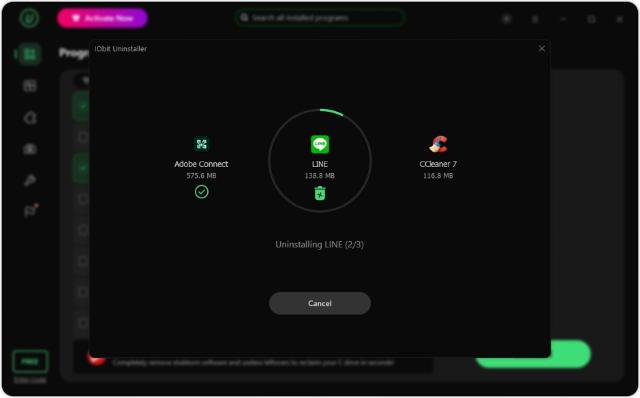
Apps you no longer use can eat into your available storage. Uninstalling them may leave files behind. Old folders and Registry entries may remain. A reliable uninstaller for Windows can clean up these leftovers. In this 2026-tested guide, I compare popular tools for easier and more complete software removal.
What Makes IObit Uninstaller Stands Out?
IObit Uninstaller 16 stands out by going far beyond basic software removal. It features an advanced Software Relocator to move heavy applications to another drive without reinstalling, a dedicated Bloatware Remover to eliminate unwanted pre-installed Windows apps, and deep residual cleaning to automatically erase stubborn leftover files, AppData remnants, and registry traces. Combined with a powerful Toolbox (including Force Uninstall and Stubborn Program Remover) and enhanced Software Health diagnostics, it delivers a comprehensive, safe, and lightning-fast cleanup solution that keeps your PC lean and optimized.
How We Tested These Uninstallers
We tested each uninstaller using the same criteria to make the comparison fair and useful. We looked at how easily each tool removes programs, detects leftover files, and helps free up storage.
Top Tools to Completely Uninstall Programs on Windows - 2026
1. IObit Uninstaller — Best Overall for Removing Leftovers
Best For
Users seeking an easy-to-use, feature-rich free tool to remove stubborn software, manage browser extensions, clean Windows bloatware, and automatically remove leftovers.
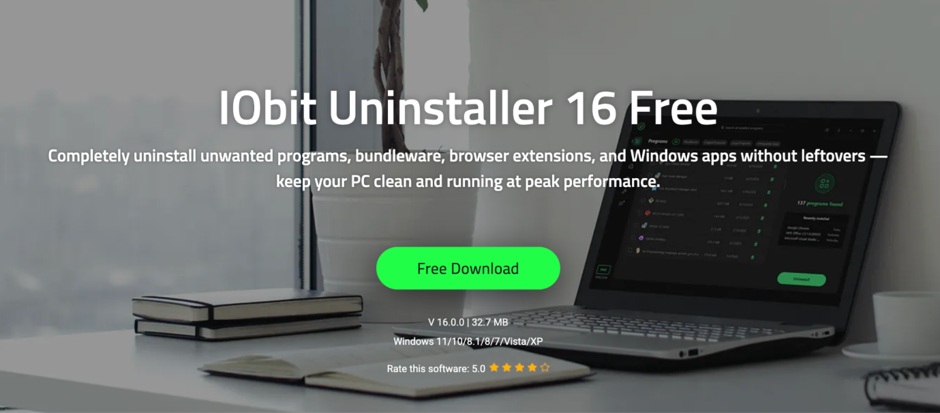
Why We Recommend IObit Uninstaller 16 Free
We recommend IObit Uninstaller 16 Free for everyday users. Its beginner-friendly design simplifies deep cleaning. It easily removes stubborn software, bundled programs, and leftover system files.
Pros
- Finds leftover folders, cache files, and Registry entries quickly.
- Detects pre-installed Windows apps like OneDrive, Copilot, and Edge.
- Software Relocator: Moves large games or editing apps to another drive while keeping all settings, shortcuts, and login statuses fully intact.
- Force Uninstall: Eliminates stubborn applications and leftover files directly by pointing to their folders, even when normal uninstallation entries are missing.
- Creates restore points before forced uninstallation.
Cons
- The installer may offer additional IObit tools, so uncheck promotional boxes if you do not want them.
- Free users may encounter ads and Pro upgrade prompts.
How to Batch Uninstall Easily with IObit Uninstaller 16?
Step 1: Start the IObit Uninstaller 16 application. Open All Programs or Bloatware Remover.
Step 2: Pick one or more apps and select Uninstall.
Step 3: Check both options to create a restore point and remove residual files. Click Uninstall to continue.
Step 4: After the app is removed, let IObit Uninstaller run its deep scan. Review the leftover files and registry entries, then click Delete or OK to remove them.
Step 5: Run the Software Health scanner to check for uninstallation leftovers, redundant files, and outdated packages across your system in one quick pass.
2. Revo Uninstaller
Best For
Power users, system administrators, and gamers who want full control over Registry cleanup and reliable removal of stubborn software and Windows bloatware.
Description
Revo Uninstaller offers more than standard app removal. Its multi-stage scans find leftover files, folders, and Registry entries. Hunter Mode lets you select an app directly from its window, icon, or system tray. Revo also shows detected leftovers before deletion, giving you control over what gets removed.
Pros
- Offers Safe, Moderate, and Advanced scan modes for flexible Registry scanning.
- Shows detected Registry entries and traces before deletion for safer cleanup.
- Helps remove built-in Windows apps.
- Backs up the Registry before making changes.
Cons
- Batch uninstall, forced removal, and browser extension management require the Pro version.
- The Advanced scan may show complex system paths, so beginners should review items carefully before deleting Registry files.
3. Geek Uninstaller
Best For
Users seeking a simple, portable tool for removing individual apps and Microsoft Store bloatware.
Description
Geek Uninstaller offers lightweight software removal without installation. It also scans for leftover files and Registry entries. Force Removal handles broken uninstallers, while Google For It helps identify unfamiliar programs.
Pros
- Runs from a single portable EXE without leaving its own files or Registry entries behind.
- Quickly loads installed programs and Windows Store apps.
- Uninstalls Windows bloatware and modern apps.
- The free version blocks bundled toolbars and unwanted software.
Cons
- Batch uninstalling is unavailable in the free version, requiring individual app removal.
- It does not create a System Restore Point automatically, so users must create one themselves.
IObit Uninstaller vs Revo Uninstaller vs Geek Uninstaller
Here’s a quick overview of the five uninstallers and their key features.
|
Feature / Metric |
IObit Uninstaller 16 Free |
Revo Uninstaller Free |
Geek Uninstaller Free |
|
Pricing Model |
Freemium (Heavy Ads / Upselling) |
Freemium (Mild Ads / Upselling) |
Freemium (No Ads / Clean) |
|
Batch / Bulk Removal |
Yes |
No (Paid Only) |
No (Paid Only) |
|
Leftover Scan Accuracy |
High |
Excellent |
High |
|
Force Uninstall |
Yes |
No (Paid Only) |
Yes |
|
Install Monitor |
Yes |
No (Paid Only) |
No (Paid Only) |
|
Windows Store Apps |
Yes |
Yes |
Yes |
|
Automatic System Restore |
Yes |
Yes |
No |
|
Portable Version |
No |
Yes |
Yes (Single <10MB file) |
|
User Interface |
Modern & Sleek |
Outdated / Technical |
Minimalist & Fast |
|
Extra System Tools |
Limited in Free version |
Startup & Junk Cleaner |
None (Focuses on speed) |
Quick Recommendation Guide
- IObit Uninstaller: Choose it for automated cleanup and a polished, beginner-friendly interface, with some upgrade prompts.
- Revo Uninstaller: Ideal for detailed Registry cleanup and manual control.
- Geek Uninstaller: A lightweight choice that runs directly without installation.
Conclusion
While basic removal tools only scratch the surface, managing your PC effectively requires a dedicated solution designed for deep maintenance. IObit Uninstaller 16 goes far beyond standard cleanup by combining automated residual scanning, a powerful Software Relocator to move heavy apps without reinstalling, and specialized tools like Force Uninstall and Bloatware Remover. By effortlessly purging leftover registry entries, cache files, and stubborn remnants, it reclaims valuable storage and keeps your system running at peak performance. Choose IObit Uninstaller 16 for a faster, smarter, and thoroughly cleaner Windows experience.
FAQs
Q 1. Will third-party uninstallers delete my saved game progress or personal data?
During a deep scan, uninstallers find app data, settings, and save files. You can review the items before deletion and uncheck personal files you want to keep.
Q 2. What sets a standard uninstall apart from Force Uninstall?
A standard uninstall uses the app’s built-in uninstaller. Force Uninstall bypasses it to remove corrupted or stubborn apps, along with their associated files and Registry entries.
Q 3. Does freeing up registry keys actually speed up my computer?
Removing a few orphaned Registry keys will not make an old PC much faster. Regular cleanup can reduce Registry clutter and support smoother startup and system stability.