
How to Remove Watermark from AI Generated Images (Midjourney, DALL·E & Canva)

AI image tools have made it ridiculously easy to create artwork, mockups, social media visuals, and even product photography. But many platforms add watermarks — especially on free plans or previews.
If you’ve downloaded an image and realized there’s a logo, text overlay, or semi-transparent branding across it, you’re not alone.
Let’s go through what actually works when it comes to removing watermarks from AI-generated images — and what usually makes things worse.
Why AI Images Have Watermarks
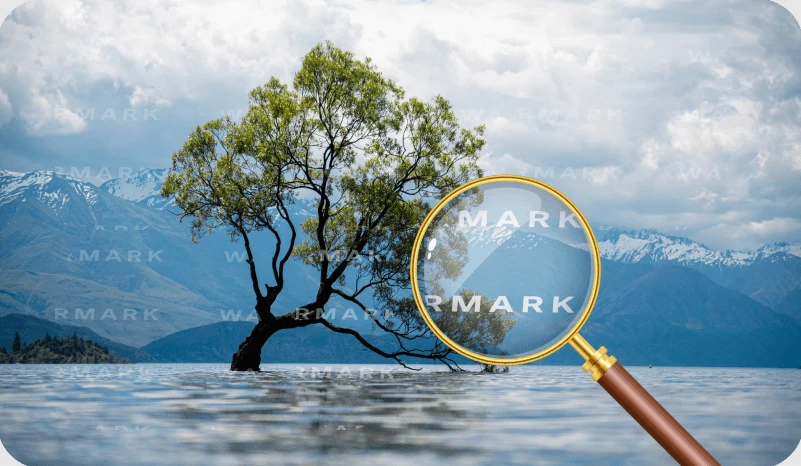
Most platforms use watermarks for one simple reason: protection.
If you’re using:
-
a free plan,
-
a trial version,
-
or previewing stock-style AI images,
the watermark is there to prevent redistribution without payment or attribution.
Common examples:
-
Large centered logos
-
Repeating diagonal patterns
-
Small corner branding
-
Semi-transparent text overlays
The type of watermark matters. A thin corner logo is much easier to remove cleanly than a repeating full-frame overlay.
Is It Legal to Remove a Watermark?
This depends entirely on the image.
If you:
-
Own the image
-
Added the watermark yourself
-
Have permission from the creator
-
Purchased the license
Then removing the watermark from your own content is fine.
If the watermark is protecting copyrighted work you don’t own, removing it may violate licensing terms. Always make sure you have the right to modify the image.
This guide focuses on legitimate use cases — especially cleaning up your own AI-generated content.
What Actually Works (And What Doesn’t)
Let’s clear up something quickly.
Cropping
Works only if the watermark is in a corner. Otherwise you ruin composition.
Blurring or Smudging
Leaves obvious artifacts. Makes the image look worse.
Clone Stamp in Photoshop (manual)
Possible, but slow and requires skill — especially on textured backgrounds.
AI-Based Inpainting / Object Removal
This is what actually works in 2026.
Modern AI watermark remover tools analyze surrounding pixels and reconstruct the missing area instead of just covering it.
If you’re looking for a fast solution, using an AI watermark remover is the most reliable way to remove watermark online without destroying quality.
How to Remove Watermark from AI Images (Step-by-Step)
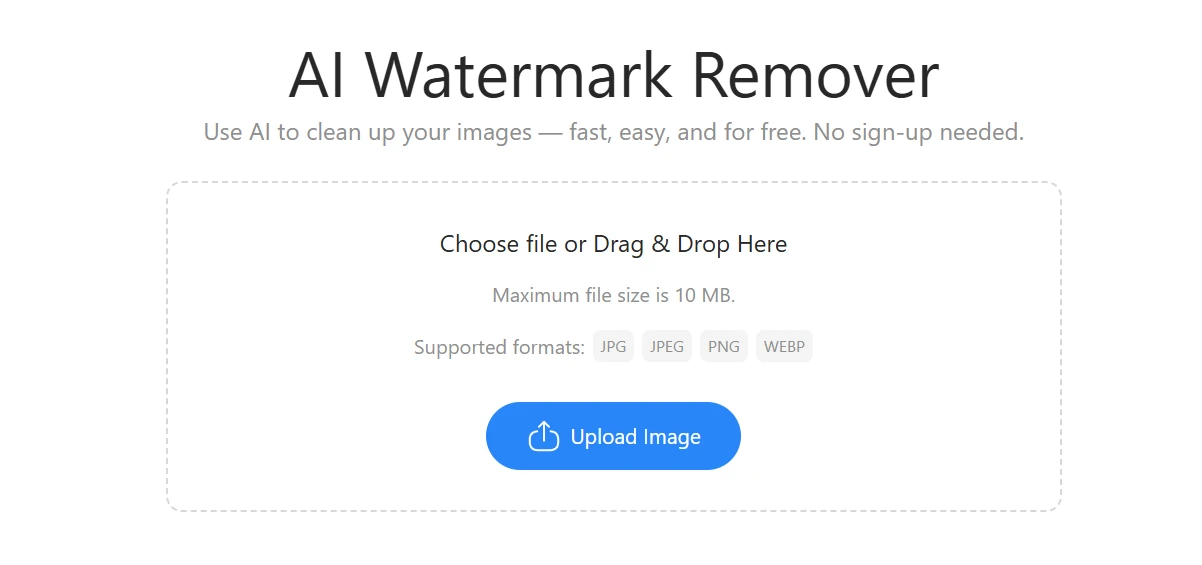
Here’s the simplest process.
Step 1: Upload the Image
Open an AI watermark remover tool and upload your image (JPG or PNG usually works best).
Step 2: Select the Watermark Area
Some tools detect it automatically.
Others let you brush over the watermark manually.
Precision helps — don’t select more than necessary.
Step 3: Let AI Reconstruct the Area
The tool analyzes nearby pixels, textures, lighting, and patterns.
Within seconds, it generates a clean version.
Step 4: Download the Clean Image
Check edges and textures before exporting in full resolution.
If you want a simple workflow, you can use a dedicated remove watermark online tool designed specifically for this task.
Removing Watermarks from Midjourney Images
Midjourney-generated images sometimes include subtle branding or export artifacts depending on how they’re downloaded.
Typical challenges:
-
Complex artistic textures
-
Gradients
-
Fine detail brush strokes
AI removal works well here because it understands patterns and symmetry.
Manual editing often leaves visible patches — especially in detailed fantasy or hyperrealistic artwork.
The key is:
-
Use precise selection
-
Zoom in
-
Check shadows and highlights after removal
Removing Watermarks from DALL·E Images
DALL·E outputs are usually clean if downloaded properly, but watermarks can appear when:
-
Using previews
-
Taking screenshots
-
Using third-party platforms
Since DALL·E images often have smooth surfaces and stylized backgrounds, they’re generally easier to reconstruct.
Still, avoid over-processing. Too many passes can introduce blur.
Removing Canva Watermarks
Canva adds visible watermarks on premium elements if you export without paying for them.
These watermarks often:
-
Repeat across the image
-
Cover large areas
This is more complex than removing a small logo.
For repeated overlays, AI-based removal performs better than manual editing — but results depend on how dense the pattern is.
If the watermark covers faces or key objects, reconstruction may slightly alter details. Always inspect carefully.
How to Keep Image Quality After Watermark Removal
The biggest mistake people make is compressing the image too many times.
To maintain quality:
-
Upload the highest resolution version available
-
Avoid screenshot versions when possible
-
Export in original dimensions
-
Don’t repeatedly re-save the file
AI removal tools work best when they have maximum pixel data to reconstruct from.
If your image becomes soft after editing, it’s usually due to compression — not the removal process itself.
When Watermark Removal Doesn’t Work Perfectly
Even modern AI tools have limits.
Challenging cases:
-
Watermarks over faces
-
Very large central overlays
-
Highly textured noise backgrounds
-
Extremely low-resolution images
In these cases:
-
Smaller brush strokes help
-
Multiple light passes work better than one large pass
-
Patience matters
But for most standard overlays, results are surprisingly clean.
Why AI Tools Are Better Than Manual Editing
Manual editing relies on copying nearby pixels.
AI-based removal predicts what should be there.
That difference matters.
Instead of smearing texture, AI reconstructs:
-
Skin tones
-
Fabric folds
-
Background gradients
-
Lighting transitions
If you want to remove watermark without Photoshop skills, modern AI tools make the process accessible to anyone.
Choosing the Right Approach
Here’s a simple rule:
Small corner watermark → almost always easy
Large repeated overlay → moderate difficulty
Full central branding → depends on complexity
If the image is important (client work, portfolio piece, ad creative), always zoom in and review at 100% before publishing.
Common Questions
Can I remove watermark from AI art without losing quality?
Yes — if the watermark doesn’t cover critical details and you use an AI-based tool designed for reconstruction.
Is there a free watermark remover online?
Many tools offer free trials or limited exports. Quality varies, so test before committing to production use.
Does watermark removal reduce resolution?
Not directly. Loss of quality usually comes from compression or exporting at lower resolution.
Can AI remove text watermark automatically?
Yes. Most modern tools detect text overlays and remove them with minimal input.
Final Thoughts
Watermarks on AI-generated images are common — especially on previews and free tiers.
Trying to crop or blur them usually makes the image look worse. Manual editing works, but it’s slow and requires experience.
AI-based watermark removal is currently the most practical and accessible solution. When done properly, it restores the image naturally without visible patches or distortions.
The key is simple:
-
Use high-resolution files
-
Select carefully
-
Avoid over-editing
-
Review before publishing
Handled correctly, watermark removal doesn’t have to compromise image quality at all.
If you work with AI visuals often, it helps to have everything in one place. Tools like Phototune also offers tools for background removal and image enhancement, which can be useful if your image needs additional cleanup after editing.