
Your Downloads Folder Is a Mess? Here's How to Clean It Safely (Even If You're Not Sure What to Delete)

Let’s be honest. Almost every Mac user has opened the Downloads folder and felt embarrassed. Years of .dmg files, .zip folders, random screenshots, and installers sit there like a digital junk drawer. You scroll and think, “I might need this someday.” So you close it and walk away. The real problem is not knowing what’s safe to delete. That fear keeps the mess growing. If you’ve been searching for how to clear downloads on mac, you are not alone. By the end of this guide, you’ll know exactly what to keep and what to toss without the anxiety.
Part 1: Why the Downloads Folder Gets So Messy (It’s Not Your Fault)
If your Downloads folder looks out of control, you are not alone. Most Mac users face the same issue. The clutter builds slowly because of system behavior and everyday habits. Let’s look at the real reasons behind it without blaming you.
macOS Never Reminds You to Clean Downloads
macOS does not prompt you to review or clean your Downloads folder. It saves files quietly and moves on. Since there are no alerts or cleanup suggestions, the folder keeps growing. Over time, months turn into years of stored files. The system makes downloading easy but does not guide you to remove old items. This is one major reason clutter feels normal and happens to almost everyone.
Apps Leave .dmg Disk Images Behind
Installing software on Mac, you normally get a .dmg file and then download it. Once you have dragged the app to Applications, installation is done but the disk image is saved in the Downloads. Most users forget to delete dmg files after installation due to the fact that the system does not automatically delete them. Such files are not required anymore; however, they remain. With time, the files which are not used .dmg accumulate and occupy space without any use.
Browsers Save Everything to Downloads by Default
- Safari, Chrome, and other browsers send most files directly to Downloads.
- PDFs, images, ZIP files, and installers all land in one place.
- There is no automatic sorting unless you set it manually.
- Frequent downloads quickly fill the folder without you noticing.
Duplicate Downloads Add Silent Clutter
- You download the same installer again because you forgot the first one.
- The system adds “(1)” or “copy” to the file name.
- Similar photos may exist with slightly different names.
- These duplicates increase storage use without clear warning.
Part 2: The 5-Minute Manual Clean (No Brainers Only)
Before using any tool, you can take a few safe steps right now. These actions are low risk and help you clean downloads folder mac without stress. First, open Finder and go to Downloads.
1. Sort by Date Modified
Click “Date Modified” at the top. Look at files older than one year. If you haven’t opened them in 12 months, you probably don’t need them. Select and delete those obvious leftovers. This is one of the easiest ways to start how to clear downloads on mac.
2. Sort by Kind
Now click “Kind.” Group files by type. Select all .dmg files. If you already installed the apps, you can safely delete dmg files after install. The application stays in your Applications folder. The disk image is no longer required. You can also remove old .zip files if you already extracted them.
3. Empty Trash
After deleting, right-click Trash and choose Empty Trash. You will feel instant relief. Many users gain space right away. This quick method helps you clean downloads folder mac in minutes. It also reduces fear because you only remove clear junk. If you want to find large files on mac, you can also switch to List view and sort by Size.
However, this manual method has limits. It works for obvious files, but it may miss hidden duplicates and buried items.
Part 3: When Manual Isn’t Enough – What You‘re Probably Missing
You sorted by date. You deleted old installers. You emptied Trash. Still, your storage looks almost the same. This is where many Mac users feel confused. Manual cleaning works for obvious files, but it does not catch everything hiding inside your Downloads folder.
Duplicate Files With Different Names
Not all duplicates look the same. You may have vacation.jpg and IMG_001.jpg, but both are the same photo. Finder does not always show that clearly. Sometimes the system adds “(1)” or slightly changes the name. These hidden duplicates stay behind even after you think you cleaned properly. They quietly take up space, and you may not notice them during a quick manual review.
Large Files Buried in Forgotten Subfolders
Downloads often contain folders inside folders. Maybe you downloaded a course, a software bundle, or a media pack months ago. Those folders may hold large video files or installers. Since they sit inside subfolders, you forget they exist. When you try to find large files manually, you may miss these buried items. They remain untouched and continue using valuable storage space.
“I Already Cleaned, Why Is My Space Still Low?”
This is a common question. You removed visible junk, yet storage still feels tight. The reason may be leftovers, hidden duplicates, or temporary files linked to downloads. Manual sorting does not always reveal these details clearly. Finder shows files, but it does not deeply analyze patterns or related items.
Part 4: How to Safely Bulk-Delete the Rest (With a Tool)
Manual cleanup eliminates junk that is easily detected; however, it can still fail to detect poorly buried and obscured large files. This is where Cleamio helps. Cleamio is aimed at the Mac users who wish to have a secure and easy method of cleaning their Downloads folder. It scans fast, organizes files of similarity and presents you with a clear view of what is occupying space. It does not require any technical knowledge to use. You do not have to guess what to delete but you go through the results and remain in control. The tool that simplifies this workflow and reduces the level of stress is Cleamio.
Key Features
- Finds duplicate files, even if they have different names.
- Detects large files that take up the most space.
- Identifies old .dmg disk images you forgot to remove.
- Groups similar files for easy review.
- Moves files to Trash first for safe recovery.
Easy Steps to Bulk Delete
Step 1: Scan
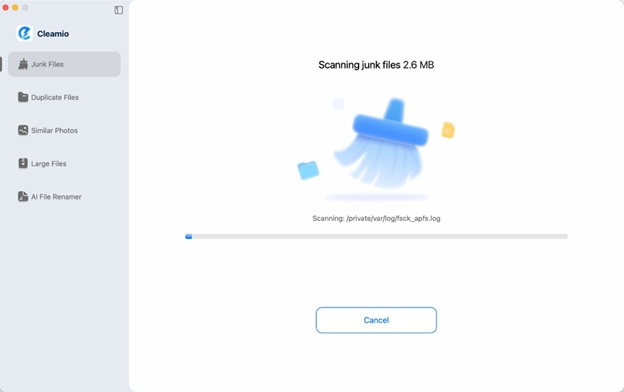
Open Cleamio and start a scan of your Downloads folder. The tool analyzes the folder in seconds. It helps you find duplicates, large files, and old disk images quickly. Instead of checking every file manually, you get a full overview in one place.
Step 2: Review
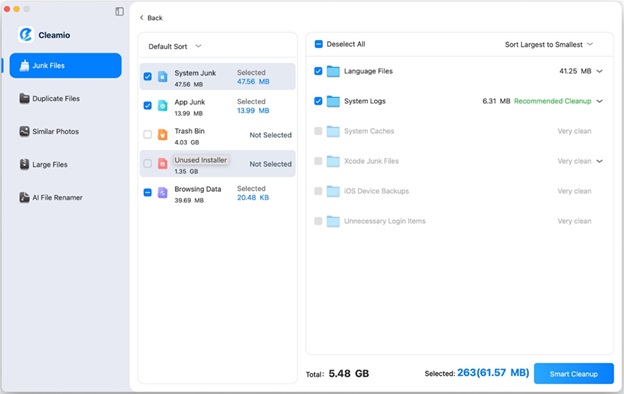
After the scan, Cleamio groups results clearly. You may see “6 copies of the same installer” or “500MB video from 2022.” Everything appears organized by type and size. You can preview files before deleting them, so you always know what you are removing.
Step 3: Clean
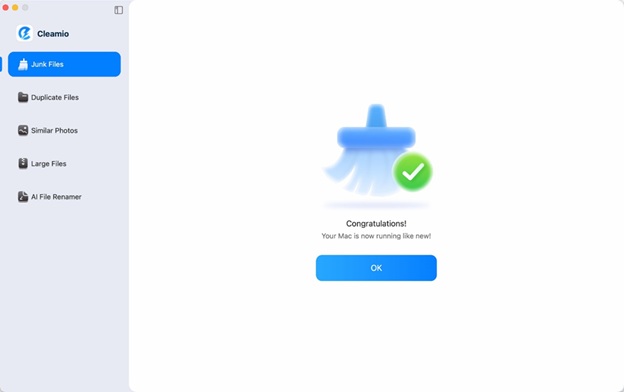
Select the items you no longer need and click clean. Cleamio sends them to Trash with one click. You can reclaim gigabytes instantly. If you feel unsure, you can restore files from Trash at any time.
Why it’s safe:
- Apple-notarized for macOS security
- Local processing (no file uploads)
- Files go to Trash first, not permanent delete
- Clear grouping of duplicates and large files
- Preview option before removal
With this approach, you can fully clean downloads folder mac without guessing. You can also regularly find large files on mac before storage becomes a problem again. Instead of spending hours sorting manually, you scan, review, and remove with confidence.
FAQ
Is it safe to delete .dmg files after installing an app?
Yes. Generally, you can remove dmg files post-install with impunity since the application is already installed in your Applications directory. The .dmg file is merely useful in the process of installation. Getting rid of it does not uninstall the application.
What if I accidentally delete something important?
You can easily restore files in case you had transferred them to Trash. Cleamio sends also items to Trash before they are removed permanently. This makes how to clear downloads on mac much less risky and reduces fear.
Can I use this method to clean other folders, like Desktop or Documents?
Yes. The same with Desktop, Documents and other folders. Not only in Downloads, but also on mac you can see big files, erase duplicates, and preview files you are going to delete without any risk.
Conclusion
A messy Downloads folder is common. You open it, see years of files, and feel unsure about deleting anything. The fear of removing something important keeps the clutter growing. Now you know how to handle it. Start with simple manual steps: sort by date, delete dmg files after install, and remove obvious junk. Then go deeper. Use a tool to find large files on mac, detect duplicates, and safely clean downloads folder mac in bulk. If you have been wondering how to clear downloads on mac, the answer is simple: sort smartly, review carefully, and clean with confidence.