
How Windows Teams Can Improve Document Workflow Reliability
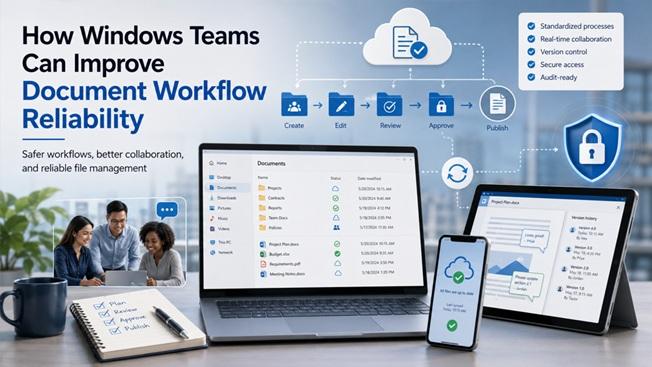
For many organizations, documents are still at the center of daily work. Project plans, internal reports, client proposals, onboarding files, invoices, meeting notes, and compliance records often move between multiple people, devices, and departments before they are considered complete. When a team depends heavily on Windows devices, a reliable document workflow becomes more than a matter of convenience. It directly affects productivity, security, accountability, and operational continuity.
Document workflow problems rarely appear as one major failure. More often, they show up as small recurring issues: someone edits the wrong version, a file cannot be opened on another device, a template is missing, an attachment gets lost in email, or a team member downloads software from an unsafe source. Over time, these small issues create delays, duplicate work, and avoidable security risks.
Improving document workflow reliability does not always require a complex enterprise system. In many cases, Windows teams can make meaningful improvements by standardizing tools, improving file management habits, verifying software sources, and creating clearer rules for collaboration.
Start with a Clear Document Workflow Structure
The first step toward a more reliable workflow is understanding how documents move through the team. A typical document may begin as a draft, move through internal review, receive comments from different stakeholders, go through final formatting, and then be archived or shared externally. If this process is not clearly defined, team members may rely on informal habits that vary from person to person.
Windows teams should define a simple document lifecycle. For example, folders can be divided into draft, review, approved, published, and archived stages. This gives employees a shared understanding of where files belong and reduces confusion when multiple people are working on similar materials.
Naming conventions also matter. A file named “proposal-final-new-v3-updated.docx” may be common, but it is not reliable. A better system includes the project name, document type, date, and version number. Consistent naming makes files easier to search, sort, audit, and recover later.
Standardize the Office Tools Used Across the Team
Document workflows become harder to manage when team members use different editing tools, file formats, or local settings. Compatibility issues can cause layout problems, broken formatting, missing fonts, or unexpected changes when files move between devices.
For Windows teams, standardizing the main office software used for document creation and editing is a practical way to reduce friction. Some teams evaluate tools such as wps because they need document editing, spreadsheets, presentations, and PDF-related features within a familiar productivity environment. The key is not simply choosing a tool, but making sure the team has a consistent setup and understands how files should be created, saved, shared, and updated.
Standardization should include file format preferences, template usage, default save locations, PDF export practices, and rules for editing shared files. When everyone follows the same baseline, it becomes easier to troubleshoot issues and maintain workflow continuity.
Verify Software Sources Before Installation
One common but underestimated risk in document workflows is unsafe software installation. Employees may search for productivity tools online, click ads, download installers from third-party websites, or install modified packages without realizing the risk. This can expose the organization to unwanted software, browser extensions, bundled installers, or even credential theft.
Before installing office or document-related software on a Windows device, teams should confirm that the download source is legitimate. This includes checking the domain name carefully, confirming HTTPS, avoiding suspicious mirror sites, and reviewing whether the installer is being offered by an official or trusted source. For users who need to verify the official entry point for office software, references such as wps官网 can be used as part of a broader source-checking process.
IT teams should also discourage employees from downloading cracked software, unofficial installers, or tools promoted through aggressive pop-ups. Even if a file appears to work, the long-term security risk can outweigh any short-term convenience.
Use Templates to Reduce Formatting Errors
Many document workflow problems begin with inconsistent formatting. When every team member creates reports, proposals, or meeting notes from scratch, the final output often requires extra cleanup. Templates help solve this by giving users a reliable starting point.
A good template should include approved fonts, heading styles, page margins, table formats, logo placement, footer information, and standard sections. For recurring documents, such as weekly reports or client proposals, templates can save time and reduce errors.
Windows teams should store templates in a shared location and restrict unnecessary changes. If templates are updated, the team should be informed clearly so old versions do not continue circulating.
Improve Version Control Habits
Version control is one of the biggest challenges in document collaboration. Without clear rules, different team members may edit separate copies of the same file, causing conflicts and confusion.
Teams should define when a document becomes a new version and who is responsible for maintaining the master copy. For example, minor edits may remain in the same version, while major structural changes should trigger a new version number. A shared change log can also help reviewers understand what changed and why.
For important files, teams should avoid sending editable attachments repeatedly through email. Instead, they should use controlled shared folders or collaboration platforms where access and updates can be tracked more reliably.
Plan for Cross-Device Work
Modern teams often work across desktops, laptops, tablets, and mobile devices. A document may be drafted on a Windows desktop, reviewed on a laptop, and approved from a mobile device. This flexibility is useful, but it can create formatting and access issues if the workflow is not designed properly.
Teams should test whether commonly used document formats open correctly across devices. They should also define when a file should remain editable and when it should be exported as a PDF for final sharing. PDF versions are often better for finalized documents because they preserve layout and reduce accidental edits.
For employees working remotely, access permissions should be reviewed regularly. Not every team member needs access to every folder. Restricting access based on role helps reduce the chance of accidental edits, file leaks, or unauthorized sharing.
Build Backup and Recovery into the Workflow
A reliable document workflow must include backup and recovery planning. Files can be deleted, overwritten, corrupted, or lost due to device failure. If the team does not have a recovery process, one mistake can delay an entire project.
Important documents should be stored in locations that support backup, recovery, and access control. Local-only storage should be avoided for critical files. Teams should also confirm that employees know how to recover previous versions when supported by their storage environment.
Backup rules should be simple enough for everyday use. A complicated policy that employees ignore is less effective than a straightforward process that everyone follows consistently.
Train Employees on Practical Document Security
Technology alone cannot make a workflow reliable. Employees also need basic training on document security and safe handling practices. This includes recognizing suspicious attachments, avoiding unauthorized software, checking file permissions before sharing, and understanding which documents contain sensitive information.
Training does not need to be lengthy. Short internal guides, onboarding checklists, and periodic reminders can be enough to improve daily behavior. The goal is to make safe document handling part of normal work rather than a separate technical task.
Review the Workflow Regularly
Document workflows should not remain static. As teams grow, tools change, and projects become more complex, old processes may stop working well. A workflow that was suitable for a small team may become unreliable when more departments, clients, or remote workers are involved.
Teams should review document processes periodically. Useful questions include: Are employees using the correct templates? Are files easy to find? Are version conflicts common? Are people downloading tools from approved sources? Are permissions still accurate? Are archived documents organized properly?
These reviews can reveal small operational issues before they become larger productivity or security problems.
Conclusion
Reliable document workflows are essential for Windows-based teams that depend on daily collaboration, file sharing, and structured reporting. The most effective improvements usually come from practical habits: standardizing tools, verifying software sources, using templates, managing versions properly, planning for cross-device work, and maintaining clear access rules.
By treating document management as an operational process rather than a casual daily task, teams can reduce errors, improve productivity, and create a safer working environment. A reliable workflow helps employees spend less time searching, fixing, and reworking files—and more time completing meaningful work.