

The latest News and Information on Cloud monitoring, security and related technologies.
What if I told you that a text file could help you tackle the normally tedious and time-consuming task of setting up and managing your AWS infrastructure? Good news. It’s actually easy to do with an AWS CloudFormation template. A typical AWS infrastructure can consist of numerous resources that might need to be managed across different accounts and regions. Setup is often a manual process that can be overwhelming to maintain.
Amazon Web Services is a comprehensive, well-supported cloud service that is continuously growing and evolving. As cloud technology continues to boom, enterprises all across the globe are increasingly depending on cloud service providers to manage their workloads, data, and applications.
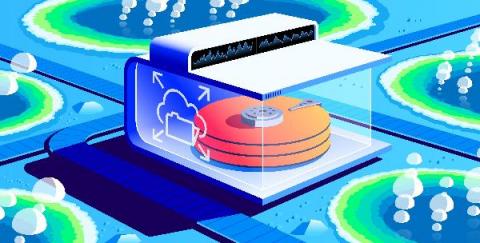
Snapshots in Azure is a nice feature that allows you to take a read-only, “point in time” snapshot of a Virtual Machine’s disk. You can take a snapshot of a VM’s OS or data disk. You can use this snapshot to revert the VM to a point in time before an event occurred, or you installed something that didn’t go quite right.
Cloud Monitoring is one of the easiest ways you can gain visibility into the performance, availability, and health of your applications and infrastructure. Today, we’re excited to announce the lifting of three limits within Cloud Monitoring. First, the maximum number of projects that you can view together is now 375 (up from 100). Customers with 375 or fewer projects can view all their metrics at once, by putting all their projects within a single workspace.
Zoom leverage AWS’s global infrastructure, storage, content distribution, and security to deliver its service and store information securely in AWS data centers around the world. This means that when you’re looking to monitor your Zoom performance, it’s important to know how to identify which AWS data center location your Zoom application is using. Keep reading to find out how.
Applications fail. Containers crash. It’s a fact of life that SRE and DevOps teams know all too well. To help navigate life’s hiccups, we’ve previously shared how to debug applications running on Google Kubernetes Engine (GKE). We’ve also updated the GKE dashboard with new easier-to-use troubleshooting flows. Today, we go one step further and show you how you can use these flows to quickly find and resolve issues in your applications and infrastructure.